
Humidity not showing in the app
If the app shows no temperature or humidity reading, either the cabinet is offline or the top environment sensor or its connection has a fault. The top environment sensor sits on the top panel and measures the temperature and humidity of the air leaving the cabinet. Work through the checks below in order, from the simplest to the most involved, and stop as soon as the readings return in the app.
Before you start
Keep the Vext app open so you can check for readings after each step.
Steps 4 and 5 involve opening the cabinet. If you would rather not, contact Vext Support and we will go through these steps with you.
Step 1: Restart the cabinet
Unplug the cabinet, wait a few seconds, then plug it back in. Wait a couple of minutes for the cabinet to start up, then check the app. If the temperature and humidity readings return, you are done. If not, continue to the next step.
Step 2: Confirm the cabinet is online
Open the app, change the light setting, and watch the cabinet to see if the light bars respond. If the lights change, the cabinet is connected to the app and the missing readings point to the top environment sensor. Continue to the next step. If the lights do not change, the cabinet is offline, which is a connection problem rather than a sensor problem. Contact Vext Support.
Step 3: Check the sensor connector
Unplug the cabinet. Find the connector on the top environment sensor and unplug it. Look at both connectors, the male and the female end, for bent pins or cracked or broken plastic. Then check the cable where it runs into the light bar for any damage.
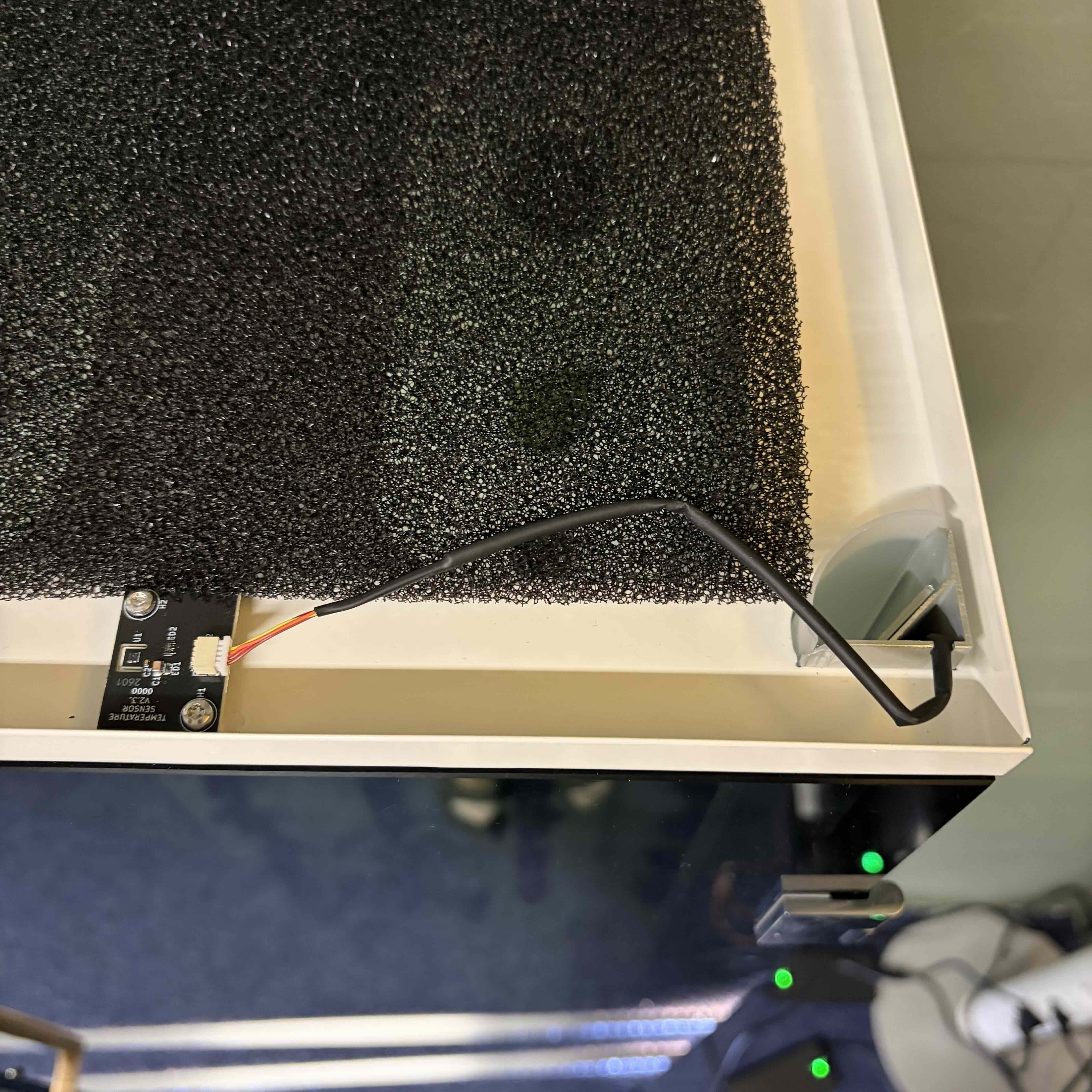
If you find damage, the part will need replacing. Contact Vext Support. If everything looks intact, press the two halves back together until they seat fully, plug the cabinet back in, wait a few minutes, and check the app. If the readings return, you are done. If not, continue to the next step.
Step 4: Check the cable at the bottom of the side glass
Unplug the cabinet and remove the right side glass:
- Lift off the filter cover and take out the top filter.
- Unplug the top environment sensor connector.
- Loosen the M5 screws on the top panel and lift the top panel off. (Tool: T25)
- Lift the right-glass module out. Have a second person help you.
- Lower it so the bottom of the light bar rests against the base.
- Unplug the small connector and the large connector at the bottom of the light bar.
Inspect the lower end of the top environment sensor cable, where it exits the bottom of the light bar, for damage.
If you find damage, contact Vext Support. If you find no damage, continue to the next step.
Still need help?
If the readings are still missing after these checks, contact Vext Support and tell us what you found at each step. That tells us where the problem is and saves us repeating the checks.