
Change cabinet Wi-Fi network
If you've moved your cabinet, changed your home network, or just want to switch which network it's connected to, you can do this without a factory reset. The process takes a few minutes and uses a similar pairing flow as first-time setup.
Before you start
Make sure you know the password for the network you want to connect to, and that your phone is near the cabinet with Bluetooth turned on.
Step 1: Put the cabinet into pairing mode
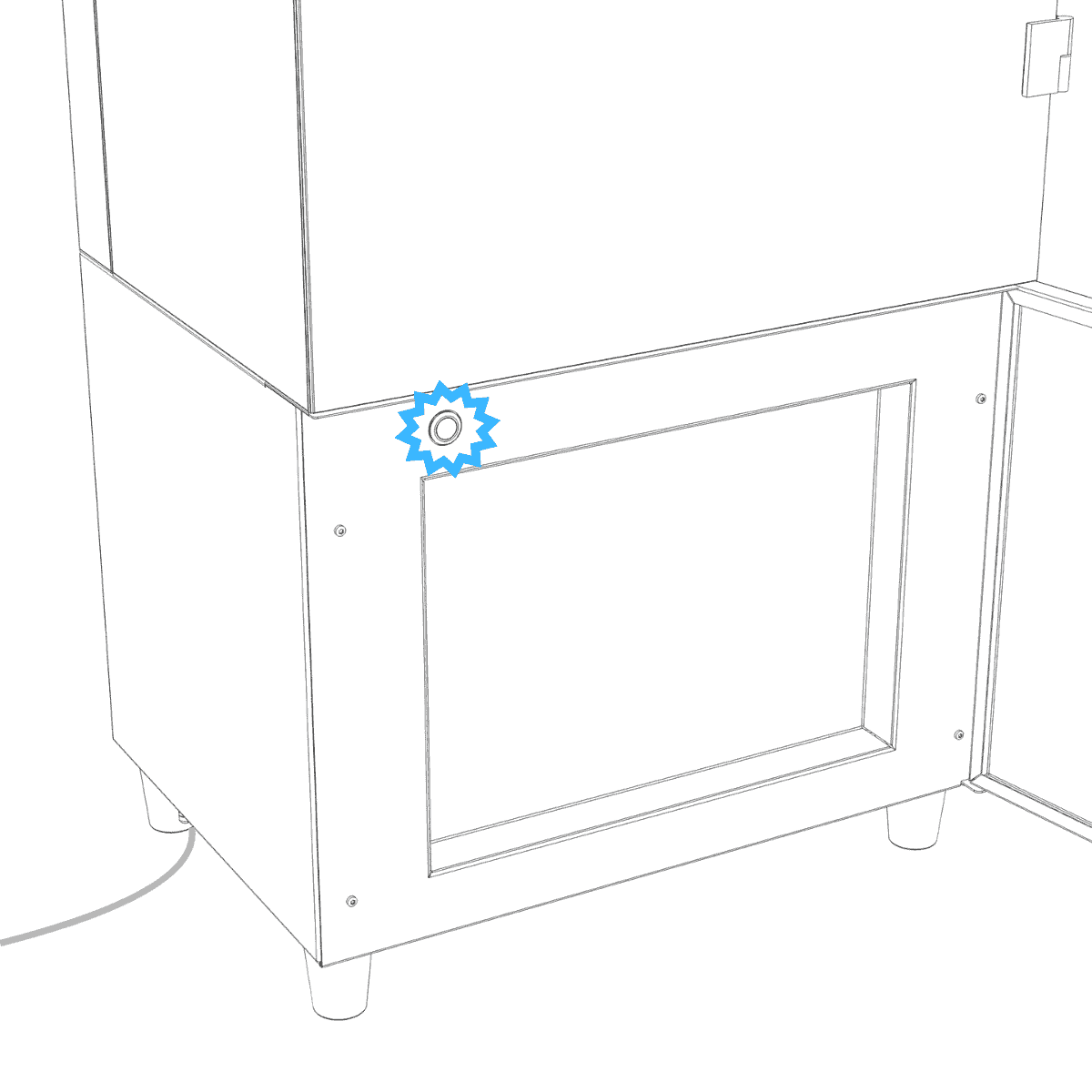
Press and hold the button on the front of your cabinet for 6 seconds until it turns blue, then release. The button begins blinking blue once pairing mode is active.
Step 2: Select your cabinet in the app
Open the Vext app and choose the correct cabinet by tapping the cabinet name on the home screen and selecting your cabinet from the dropdown list.
Step 3: Start the Wi-Fi change
Go to that cabinet's settings page and tap the old network name under "Cabinet Wi-Fi". From here, the app walks you through the same steps as the first connection: it scans for your cabinet, then asks you to choose and confirm the new network.
Step 4: Confirm the cabinet is back online
Once the new network is confirmed, the app returns to the home screen.
In rare cases, the cabinet stays in pairing mode after a successful switch instead of returning to normal operation. If this happens, a short press of the button will bring it back. Pairing mode also ends on its own after 10 minutes if you'd rather wait it out.
Once the button light is green, open the app and move the brightness slider for the light bars. If the lights respond, your cabinet is connected.
All done.
Your cabinet is now running on the new network. Your grow schedule, your pods, and everything else stay exactly as they were.